Preparation
Supported Office Software
WordOllama currently supports the following office software:
- Microsoft Office Word 2013/2016/2019/2024/365
- WPS Office (latest version)
System Requirements
Since the plugin is built on .NET Framework, it currently only supports Windows operating system.
- OS: Windows 7/10/11
- .NET Framework: 4.8 (included by default in Windows 10/11)
WPS Special Configuration
The latest one-click install script already includes WPS configuration. To configure manually, choose one of the following methods:
Method 1: Command Line
Open an administrator terminal and run the following command:
PowerShell:
New-ItemProperty -Path "HKCU:\SOFTWARE\kingsoft\office\WPS\AddinsWl" -Name "WordOllama" -Value "" -PropertyType StringCMD:
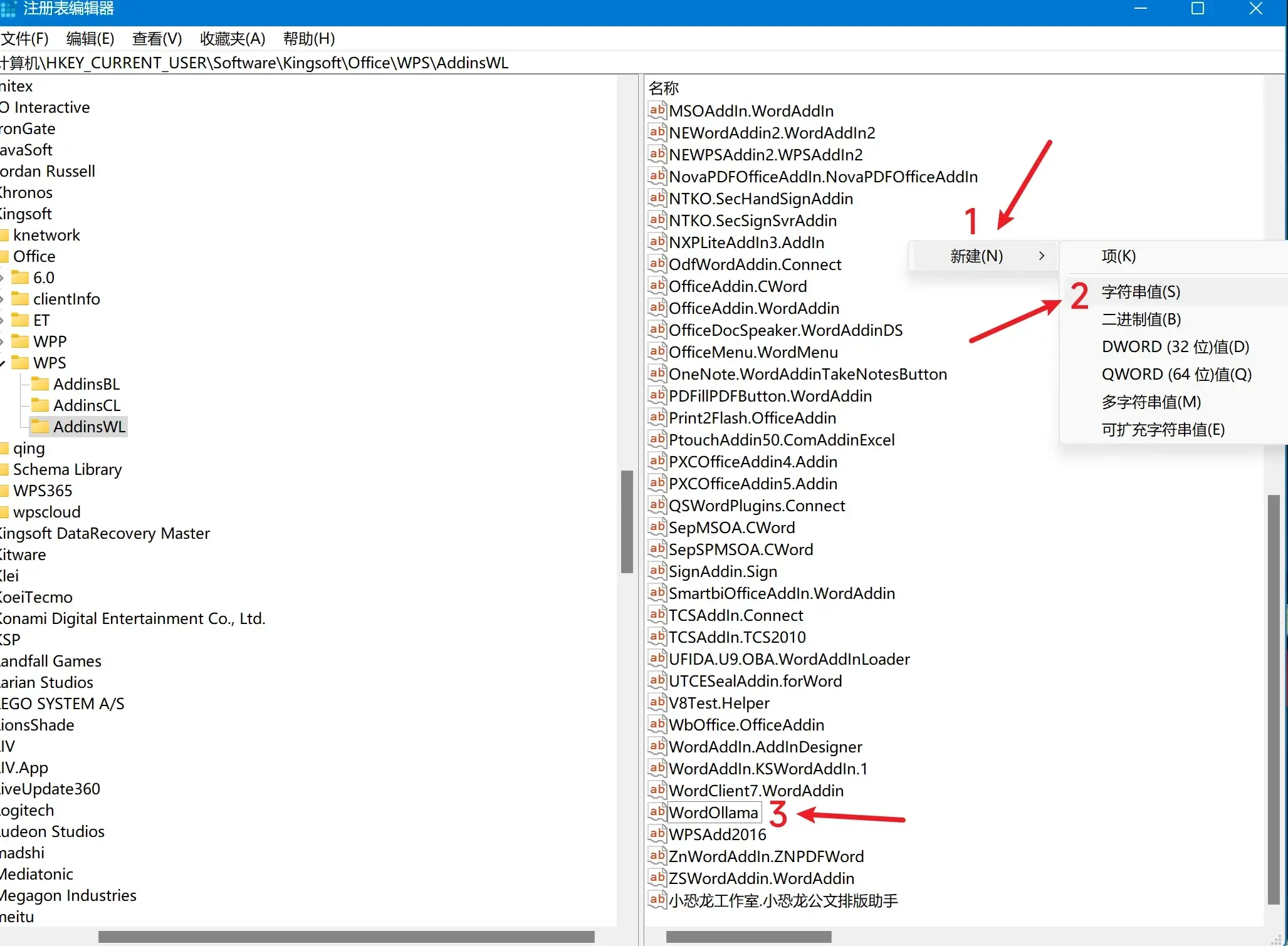
reg add "HKCU\SOFTWARE\kingsoft\office\WPS\AddinsWl" /v WordOllama /t REG_SZ /d "" /fMethod 2: Manual Registry Edit
- Press
Win + R, type "regedit" and press Enter. - Navigate to
HKEY_CURRENT_USER\SOFTWARE\kingsoft\office\WPS\AddinsWl. - If
AddinsWldoesn't exist, right-click onWPSand create it. - Under
AddinsWl, create a new String Value namedWordOllamawith empty data.
Hardware Requirements
CPU Mode
In CPU mode, model speed is mainly affected by memory bandwidth.
- At least 16GB RAM recommended (8GB minimum)
- Models with 7B parameters or less recommended
- Smaller quantized versions can improve speed and reduce memory usage
GPU Mode
- NVIDIA GPU: 6GB+ VRAM recommended
- AMD GPU: Latest drivers required, 8GB+ VRAM recommended (ROCm required)
Storage
- WordOllama installer: ~10MB
- Ollama program: ~1.6GB
- Model files: typically 4GB-10GB depending on the model
Install Ollama (Optional)
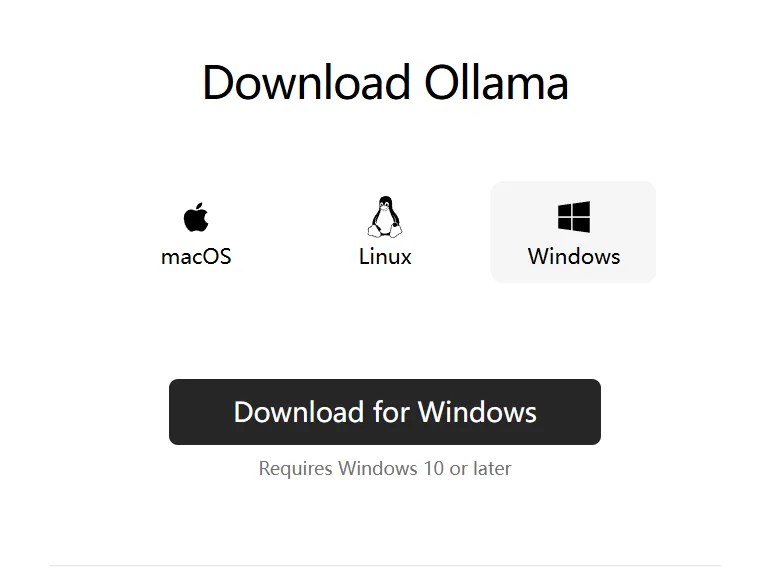
To use local models, install Ollama first:
- Visit ollama.com to download and install Ollama
- Run
ollama pull <model-name>in terminal to download a model - Recommended starter models:
qwen2.5:7b,llama3.2:3b
Done!
Once the above steps are complete, proceed to Installing WordOllama.